
Creating your first key-value table from the command line, and measuring what each read costs
Published
From the course: Hands-on Cloud for Freshers, session 6: Data that outlives the server: DynamoDB
You have a small notes app and nowhere permanent to keep the notes. Records stored on a server’s own disk vanish when that server is replaced, so you want a managed table that outlives any one machine. You open a terminal and immediately hit two questions: what should the first command be, and how do you know whether a read is cheap or expensive?
This lab answers both using Amazon DynamoDB, a managed table service you reach entirely through an API. The claim is simple. The partition key you choose when you create the table decides two things: which item every write touches, and how much work every read does. Reading by key goes straight to one item. A Scan reads every item, and you can watch the difference in the response itself. You will create a table, fill it, read it three ways, compare the cost of each, and then delete it.
The setup is small: one identity, one Region, one billing mode
You need an account, an everyday administrator identity that is not the root user, and the AWS command-line interface (CLI), version 2, signed in as that identity. This lab uses the Asia Pacific (Mumbai) Region, ap-south-1. If your CLI is not yet set to that Region, run:
aws configure set region ap-south-1To confirm who you are signed in as, run aws sts get-caller-identity. The Account field in the output is your 12-digit account ID. The CLI documentation notes that this command needs no permissions, so it works whatever identity you use.
Now the money. The table uses on-demand capacity, a mode in which you pay per read and write request and plan no capacity in advance. The service documentation calls it the default and recommended mode. It also states that if you are “driving zero traffic to your table, then with on-demand, you are not charged for any throughput.” Storage is billed separately.
As of 2026-10-02, the pricing page listed 25 GB of storage per Region in the Free Tier. It also listed 25 free read and 25 free write capacity units, but those apply to the provisioned mode, not to on-demand requests. The few dozen requests in this lab are billed per request.
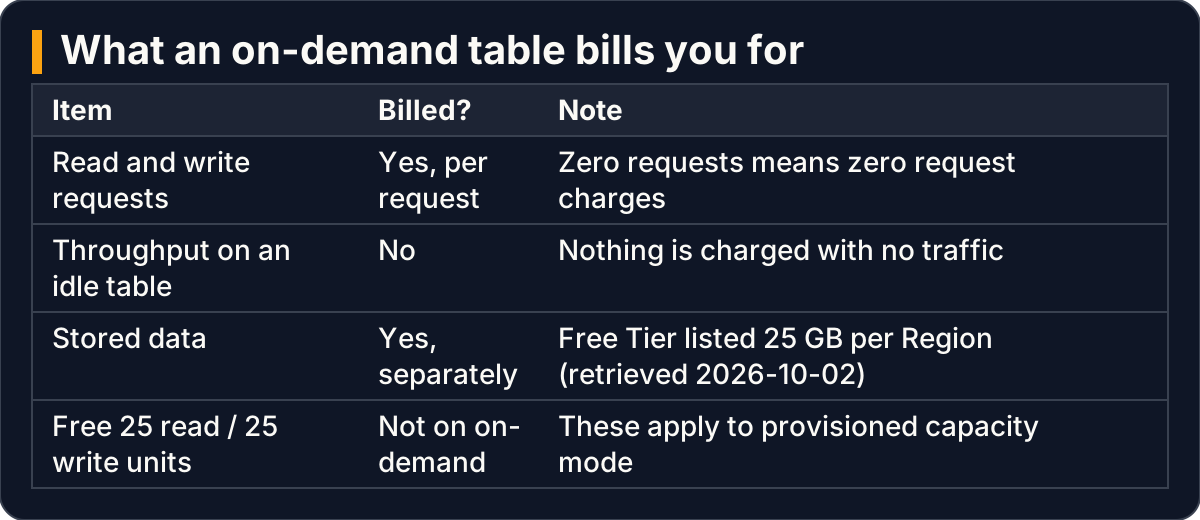
On-demand bills each request and stored data; an idle table has no throughput charge
The partition key is the first decision, because it is the item’s identity
A table is a collection of items, much like rows. Each item is a group of attributes, much like fields. Every item must have a primary key that no other item shares. In the simplest case that key is one attribute, the partition key. DynamoDB feeds the partition key’s value into an internal hash function, and the result decides where the item is stored.
Think of it as a wall of numbered lockers. The table is the wall, and the partition key is the number on each door. To fetch something, you name the number and walk straight to that locker.
This lab’s table is hoc-notes, with partition key noteId, a string, and no sort key. Create it:
aws dynamodb create-table \
    --table-name hoc-notes \
    --attribute-definitions AttributeName=noteId,AttributeType=S \
    --key-schema AttributeName=noteId,KeyType=HASH \
    --billing-mode PAY_PER_REQUEST \
    --tags Key=project,Value=hands-on-cloud
Three parts of that command do the teaching:
--attribute-definitionslists only the key. You never declaretitleorbody. Apart from the key, the table is schemaless, which means each item can carry different attributes.KeyType=HASHmarksnoteIdas the partition key. The older name for the partition key is “hash attribute”, after the hash function. A sort key would beRANGE. A key attribute must be a string, a number or binary.PAY_PER_REQUESTselects on-demand capacity.
Why choose noteId and not title? Because the app fetches a note by its id, from a link or an API path, and because the key must be unique. Titles repeat. As the next sections show, two notes that share a key do not coexist.
What you should see: the command returns at once with "TableStatus": "CREATING". Check it until it changes:
aws dynamodb describe-table --table-name hoc-notes --query "Table.TableStatus"When it prints "ACTIVE", the table is ready for writes.

The partition key’s value goes through a hash function that decides where each item is stored
Items are written in typed JSON, and a reused key replaces silently
The CLI writes items in typed JSON: every value is wrapped in its type. A string is {"S": "Buy milk"}. The number 2 is {"N": "2"}.
That number sits inside quotes. It looks wrong the first time, but it is correct. The N says the value is a number, and the value itself travels as a string. Writing {"N": 2} is the mistake to watch for.
Add a few notes:
aws dynamodb put-item --table-name hoc-notes \
    --item '{"noteId": {"S": "n-001"}, "title": {"S": "Buy milk"}, "body": {"S": "Two litres"}}'

aws dynamodb put-item --table-name hoc-notes \
    --item '{"noteId": {"S": "n-002"}, "title": {"S": "Read chapter 3"}, "priority": {"N": "2"}}'
Add two or three more, each with its own id. Notice that n-002 has a priority attribute and n-001 does not. That is schemaless storage at work.
Think of it as your phone’s contacts list. Some contacts have a birthday, some have an email address, and only the ID is required.
Now try the failure on purpose. Write n-001 again with different contents:
aws dynamodb put-item --table-name hoc-notes \
    --item '{"noteId": {"S": "n-001"}, "title": {"S": "Call home"}}'
What you should see: nothing. There is no error and no warning.
Read the item back and it says Call home, and it has no body at all. The documentation describes a put precisely: it “creates a new item, or replaces an existing item with a new item.” Two writes with the same key are two versions of one item. The second replaces the first entirely, attributes and all. In the locker picture, you did not add a second locker. You emptied the existing one and refilled it.
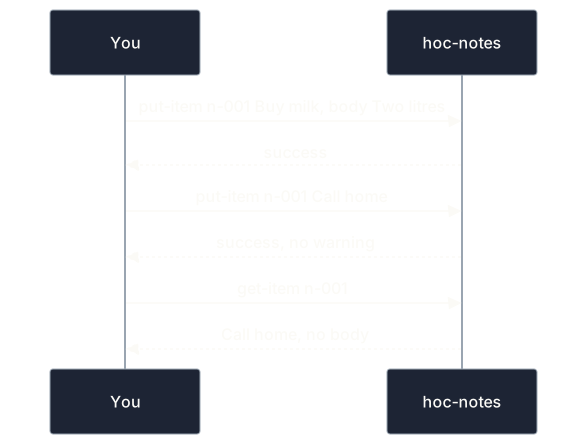
Two puts with the same key leave one item: the second replaces the first entirely
GetItem reads one item, because it walks straight to the key
The notes app has two different jobs. Opening a link to one note means the app knows the key. Showing the home page means it must list every note and knows no key. Each job calls for a different read, so measure both.
GetItem takes the full primary key and returns that one item, or nothing. Ask it to report what it consumed:
aws dynamodb get-item --table-name hoc-notes \
    --key '{"noteId": {"S": "n-002"}}' \
    --return-consumed-capacity TOTAL
What you should see: the item, plus a ConsumedCapacity block that shows the read capacity this one request used. Write that figure down, because it is your baseline.
Reads are eventually consistent by default. Add --consistent-read and you get a strongly consistent read instead. It reflects every write that completed before it, and it costs twice as much. Run the command once with the flag and compare the two ConsumedCapacity figures.
Scan reads every item, and a filter does not make it cheaper
For the home page there is no key to walk to. You open every locker on the wall, one after another. That is a Scan:
aws dynamodb scan --table-name hoc-notes --return-consumed-capacity TOTALWhat you should see: all your notes, a ConsumedCapacity block, and two counts. ScannedCount is the number of items read. Count is the number of items returned. On an unfiltered Scan the two are equal.
Now ask for just one note through a filter. A filter expression narrows the results that come back:
aws dynamodb scan --table-name hoc-notes \
    --filter-expression "title = :t" \
    --expression-attribute-values '{":t": {"S": "Call home"}}' \
    --return-consumed-capacity TOTAL
What you should see: Count drops to 1, but ScannedCount still equals the full number of notes. The documentation spells out why: “a Scan consumes the same amount of read capacity, regardless of whether a filter expression is present.” The filter is applied after the read. It shrinks the answer, not the work. It is like opening every locker and keeping only the red bags.
Scans also run in pages. A Scan reads up to 1 MB per request, and the CLI keeps requesting pages until it has read the whole table.
A large ScannedCount beside a small Count is the signature of an inefficient read. With five notes the waste is invisible. With a million notes, a Scan that finds one title reads a million items, while GetItem by key still reads one. On-demand capacity bills you for what is read, so this is a cost problem as well as a speed problem.

GetItem reads only the named item; a filtered Scan reads every item and returns fewer
In my view, the working rule follows directly. Choose Scan when you truly need every item and the table is small, such as listing a practice app’s notes. Choose GetItem whenever you can name the key.
Query matches GetItem here, and earns its place with a sort key
There is a third read. Query returns the items that share one partition key value. Its key condition must test the partition key for equality, with the value passed through a placeholder that starts with a colon:
aws dynamodb query --table-name hoc-notes \
    --key-condition-expression "noteId = :id" \
    --expression-attribute-values '{":id": {"S": "n-002"}}' \
    --return-consumed-capacity TOTAL
What you should see: one item. In a table with only a partition key, no two items can share that value, so Query returns at most one item, the same one GetItem returns.
Query earns its place when a table also has a sort key, an optional second key attribute. Items that share a partition key are stored together, ordered by the sort key. Picture a music table keyed by artist and song title. Querying one artist is like pulling out the drawer with that artist’s name: every song comes out in title order, and no other drawer is touched.
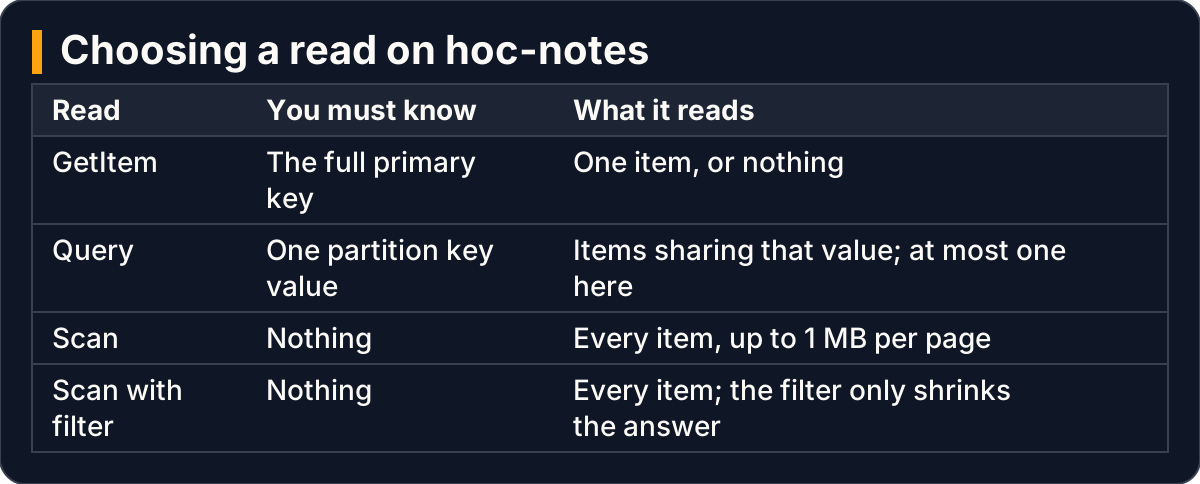
The three reads differ in what you must know and how much they read
Cleaning up leaves nothing to bill
An idle on-demand table incurs no throughput charge, but its stored data is still billed. When you have finished experimenting, delete the table:
aws dynamodb delete-table --table-name hoc-notesWhat you should see: a description of the table with its status changing to DELETING. After that, describe-table reports that the table cannot be found. The project = hands-on-cloud tag you added at creation makes it easy to check that nothing from this lab is left behind.
Key takeaways
- Create the table with only its key declared. Everything else is schemaless and can differ from item to item.
- Choose the partition key from how the data is fetched and what makes it unique, such as an id and never a title. A put with an existing key silently replaces the whole item.
- Write values in typed JSON, and quote numbers:
{"N": "2"}. - Add
--return-consumed-capacity TOTALto any read to see what it cost. CompareScannedCountwithCounton every Scan. - GetItem reads one item. A Scan reads all of them, and a filter expression does not reduce what it reads.
- On on-demand capacity you pay for requests and stored data. Strongly consistent reads cost twice as much as the default.
This lab measured reads on a handful of items. It does not settle how to design keys for richer access patterns, how to prevent overwrites with a condition on the put, or how to limit an application’s permissions to this one table. Each of those deserves its own treatment.