
How to explain protecting the AWS root user and everyday admin access in an interview
Published
From the course: Hands-on Cloud for Freshers, session 1: A safe first AWS account
The interviewer leans back and asks: “You’ve just created a new AWS account. What’s the first thing you do about security?” Many freshers answer “enable MFA” and stop there. That answer is correct, but it is incomplete. A complete answer has two halves. First, lock the root user: give it a strong password and multi-factor authentication, create no access keys for it, and control who can recover it. Second, put it away: do everyday work through a separate administrative identity that uses temporary credentials. The rest of this article works through the questions you are likely to hear, answers each from current AWS IAM guidance (as of 2026-10-08), and ends with what to practise before you sit down.
The root user is the identity with complete access, so it is not for daily work
“What is the AWS account root user?”
When you first create an AWS account, it comes with a default set of credentials that have complete access to all AWS resources in the account, and this identity is called the AWS account root user. AWS strongly recommends that you don’t use the root user unless you have a task that actually requires root user credentials. Instead, you create an administrative user for everyday tasks.
Think of it as the master key to a building. You don’t carry it on your keyring for opening your office each morning. You lock it in a safe and use a key cut for the doors you need.
A good interview answer names both halves of the idea. The root user is powerful, so you protect it. It is also rarely needed, so you stop using it. Interviewers often listen for whether you mention the second half.

Lock the root user, then route everyday work through an administrative identity
Locking the root user means a strong password, MFA, and no access keys
“How would you secure the root user’s credentials?”
Start with the password. AWS recommends a password that is strong and unique, and a password manager with strong generation can help. AWS also enforces minimum rules. The password must be 8 to 128 characters long and include at least three of these types: uppercase letters, lowercase letters, numbers and symbols. It also must not match the account name or email address.
Next, add multi-factor authentication (MFA), meaning a second proof of identity on top of the email address and password. All account types (standalone, management and member accounts) require MFA to be configured for their root user. If MFA is not already enabled, it must be registered within a grace period that begins at the first sign-in attempt to the console. You can register up to eight MFA devices of any mix of supported types, and AWS strongly recommends registering more than one for resilience.
Supported types include FIDO-certified hardware security keys, hardware tokens that show a six-digit time-based one-time password (TOTP), and virtual authenticator apps on a phone. Setting up a virtual device is done while signed in as the root user. You scan a QR code, then enter two consecutive codes from the app. That setup step also explains why spare devices matter. If you lose the only phone holding the virtual device and have no other device or recovery path, you cannot sign in, and you have to contact customer service to remove MFA from the account.
Then comes the point many freshers miss: don’t create access keys for the root user. Access keys let you run commands in the command line interface or call the API from a software development kit (SDK). Root access keys would carry full access to every service and resource, including billing information. Root-only tasks are rare, so AWS recommends doing them by signing in to the console. If programmatic access is genuinely needed, the aws login command with root credentials provides temporary, automatically rotated credentials instead of long-term keys.
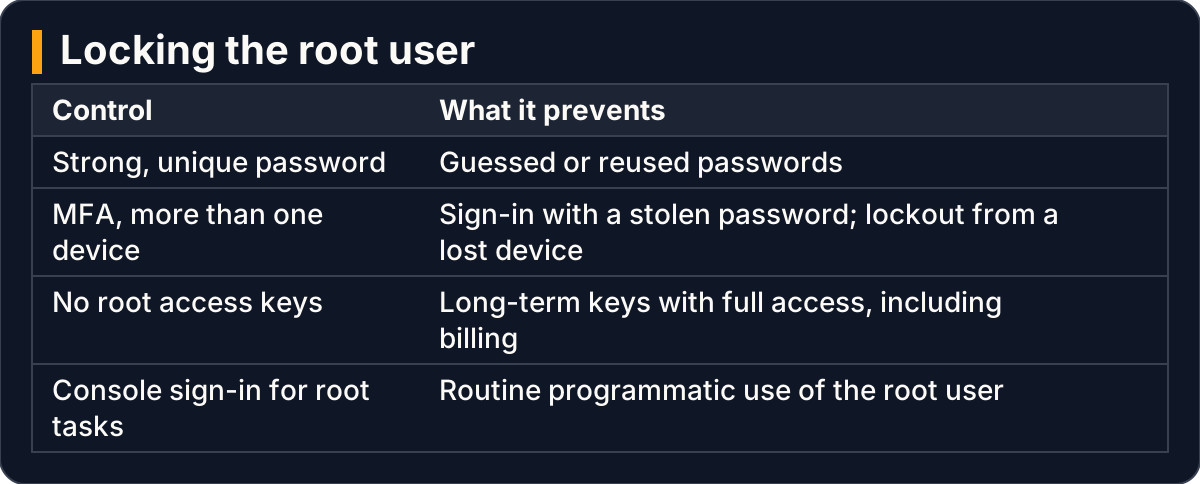
Each root user control and the risk it closes
Putting it away means everyday work runs through temporary credentials
“If not the root user, then what do you use day to day?”
You create an administrative user, and from it you create other identities for the people who need access. AWS strongly recommends that users authenticate with temporary credentials. The right tool depends on how the accounts are set up.
For a single, standalone account, AWS points to IAM roles. A role has no standard long-term credential such as a password or access key. When you assume a role, you receive temporary security credentials for that session. For several accounts managed together through AWS Organizations, AWS points to IAM Identity Center workforce users. These let you manage users and their permissions centrally across accounts, either in Identity Center itself or through an external identity provider.
“So what’s wrong with IAM users?”
IAM users have long-term credentials such as passwords and access keys. Current guidance is that human users should use federation (signing in through an identity provider) to get temporary credentials. IAM users should be kept for specific cases that federated users cannot handle. Two such cases are emergency access and workloads that cannot use IAM roles.
If you do create an IAM user, the guidance still applies. Create only the credentials the user needs, so a console-only user gets no access keys. Manage permissions through groups rather than attaching them one user at a time. You can also set a permissions boundary, which caps the maximum permissions a user can have without granting any.
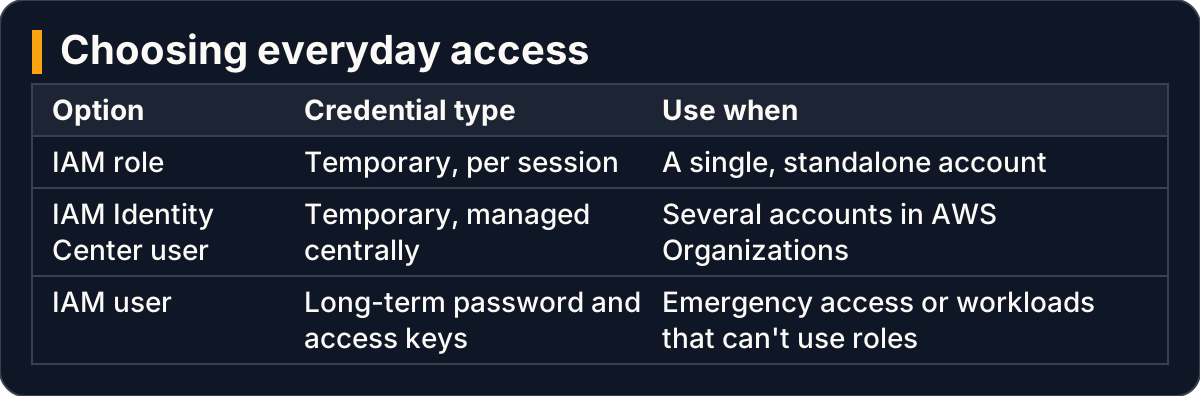
Roles and Identity Center hand out temporary credentials; IAM users carry long-term ones
A useful rule for interviews, offered here as judgment rather than as AWS wording: choose a role or a federated identity by default, and choose an IAM user only when you can name the specific reason a temporary credential won’t work.
No single person should hold every key to the root user
“Who should have access to the root user’s credentials?”
Only people with a strict business need. Don’t share the root password, MFA, access keys or signing certificates with anyone else. AWS goes further and suggests multi-person approval. One group of administrators holds the password, another group holds the MFA, and one member from each group must come together to sign in as root.
Think of it as a bank vault that needs two keyholders to open. Neither can open it alone, so a single compromised or careless person is not enough.
Storage needs the same care. Don’t store the root password in a tool that runs on AWS services inside the same account that password protects. If you lose the password, you also lose access to the tool holding it. Access to the password or to wherever it is stored should be logged and monitored.
“What email address should the root user have?”
Use a business-managed email address that forwards messages to a group of people. That way, if AWS needs to reach the owner, a reply doesn’t wait on one person who is away, ill or has left. That address should not be used for anything else.
Recovery channels need the same protection as the password
“How would someone recover root access, and how do you protect that path?”
This is a strong follow-up, because recovery is a back door. You need access to the root email inbox to reset a lost password. If one MFA device fails, you can sign in with another device registered to the root user. If you have lost every MFA device, recovery requires both the email address and the phone number used to register the account, and both must be current and reachable.
The email inbox and the phone number are both verification channels for recovering the root password. For that reason, no one person should control both. AWS recommends two groups: one with access to the primary email address and another with access to the primary phone number.

Splitting recovery channels between two groups means no one person can recover root alone
With many accounts, member root credentials can be removed altogether
“How does this change when a company runs many AWS accounts?”
With AWS Organizations, every account has its own root user to secure. The account that creates the organization is the management account, and its root user must have MFA registered. The other accounts are member accounts.
For member accounts there are two strategies. The first is to centralize root access. You remove the member account’s root password, access keys and signing certificates, and deactivate and delete its MFA, so the member account can no longer sign in as root or recover its root password. The second is to keep those root credentials and secure them with MFA. AWS recommends removing root credentials from member accounts. Where member root credentials stay enabled, a service control policy (an organization-wide permission guardrail) can deny all root actions except certain root-only ones.
Compliance tools can give a misleading signal here. MFA-related checks report “noncompliant” when root credentials have been removed, because there is no MFA left to find. After removal, those member accounts are evaluated as “not applicable”. Mentioning this nuance tends to show real understanding rather than memorised rules.
Root sign-in should raise an alert that someone knows how to answer
“How would you know if someone used the root user?”
AWS recommends monitoring, alerting and reporting on root user sign-in and usage, including alerts that announce a root sign-in. The account’s logging service records root sign-ins and privileged root sessions as separate events. Event rules can detect root credential use and notify a security administrator. Configuration and posture-checking services can flag a root user without MFA or with access keys.
An alert is only useful if someone acts on it. AWS says to have procedures so that whoever receives a root alert knows how to confirm the access was expected. They should also know how to escalate if they suspect an incident.
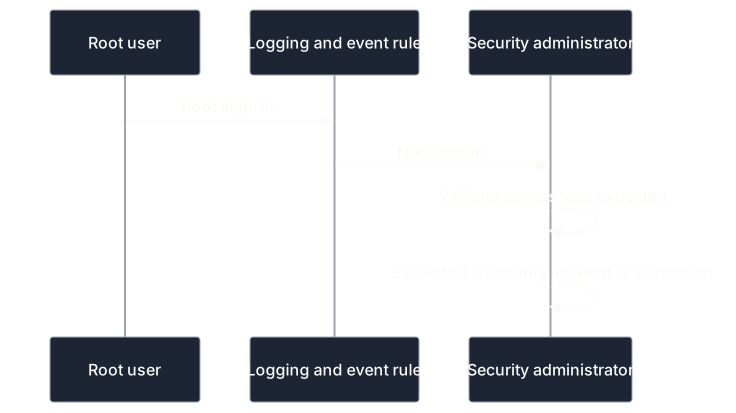
A root sign-in becomes an alert, then a check against expected work, then escalation if unexpected
What to practise before the interview
Answers stick when you have done the steps yourself. In a practice account, the following exercises are a sensible preparation:
- Set a strong root password, then register two MFA devices, so you can explain why a single device is a risk.
- Check that the root user has no access keys, and be ready to say why there should be none.
- Create an administrative identity and sign in through it for everything else. In a standalone account, try assuming a role and notice that the session credentials are temporary.
- Say aloud, in one breath, who holds the root password, who holds its MFA, who holds the recovery email and who holds the recovery phone.
- Sketch the alert path for a root sign-in, ending with what the person who receives the alert should do.
Key takeaways
- The root user has complete access to every resource in the account, so you lock it with a strong password and MFA on more than one device, and you never create root access keys.
- After locking it, you put it away: everyday work goes through an administrative identity, and people sign in with temporary credentials from roles or IAM Identity Center rather than long-term IAM user credentials.
- No single person should hold both the root password and its MFA, or both recovery channels (the email inbox and the phone number).
- In an organization, removing member accounts’ root credentials is the recommended approach, and root sign-ins everywhere should trigger alerts backed by a response procedure.
This article settles what to say about root-user protection and the shape of everyday administrative access. It does not cover how to design the permission policies that the everyday administrator and other users receive, and it does not list the specific tasks that still require root credentials. Those are the natural next questions an interviewer may ask.